Creating and managing mushafs and notebooks
Create, rename, recolour, reorder and delete your mushafs and notebooks.
Last updated 27 September 2026
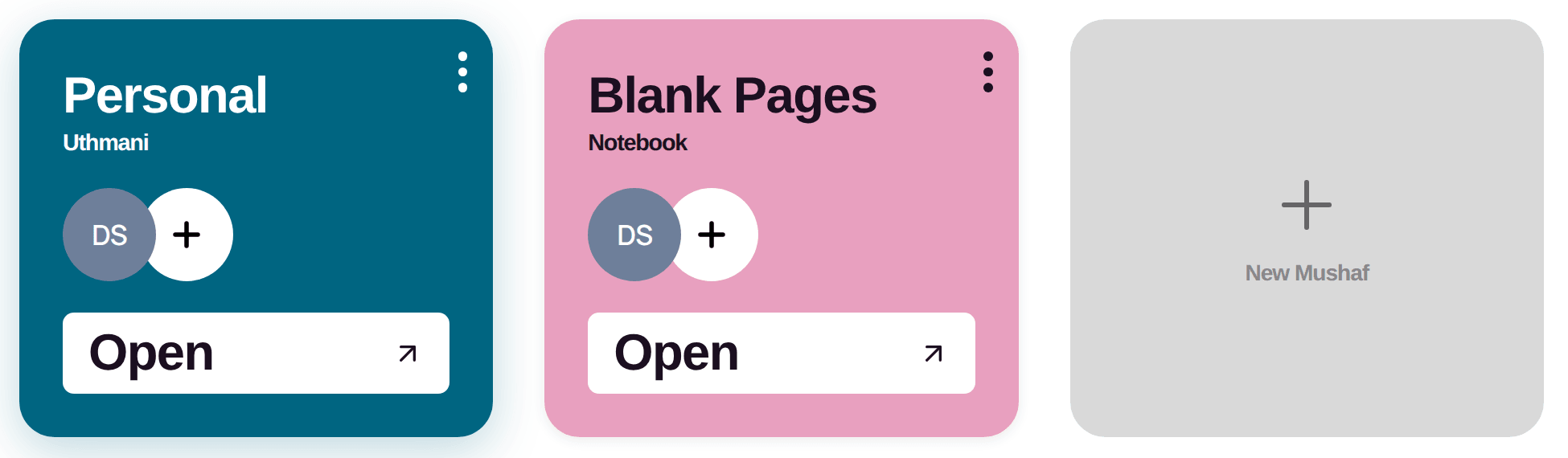
Your dashboard shows a card for each mushaf and notebook. You can have up to 10 at a time.
Create a new mushaf or notebook
On the dashboard, tap the New Mushaf card (the card with a +). On the desktop app you can also use File > New Mushaf (Cmd/Ctrl+N).
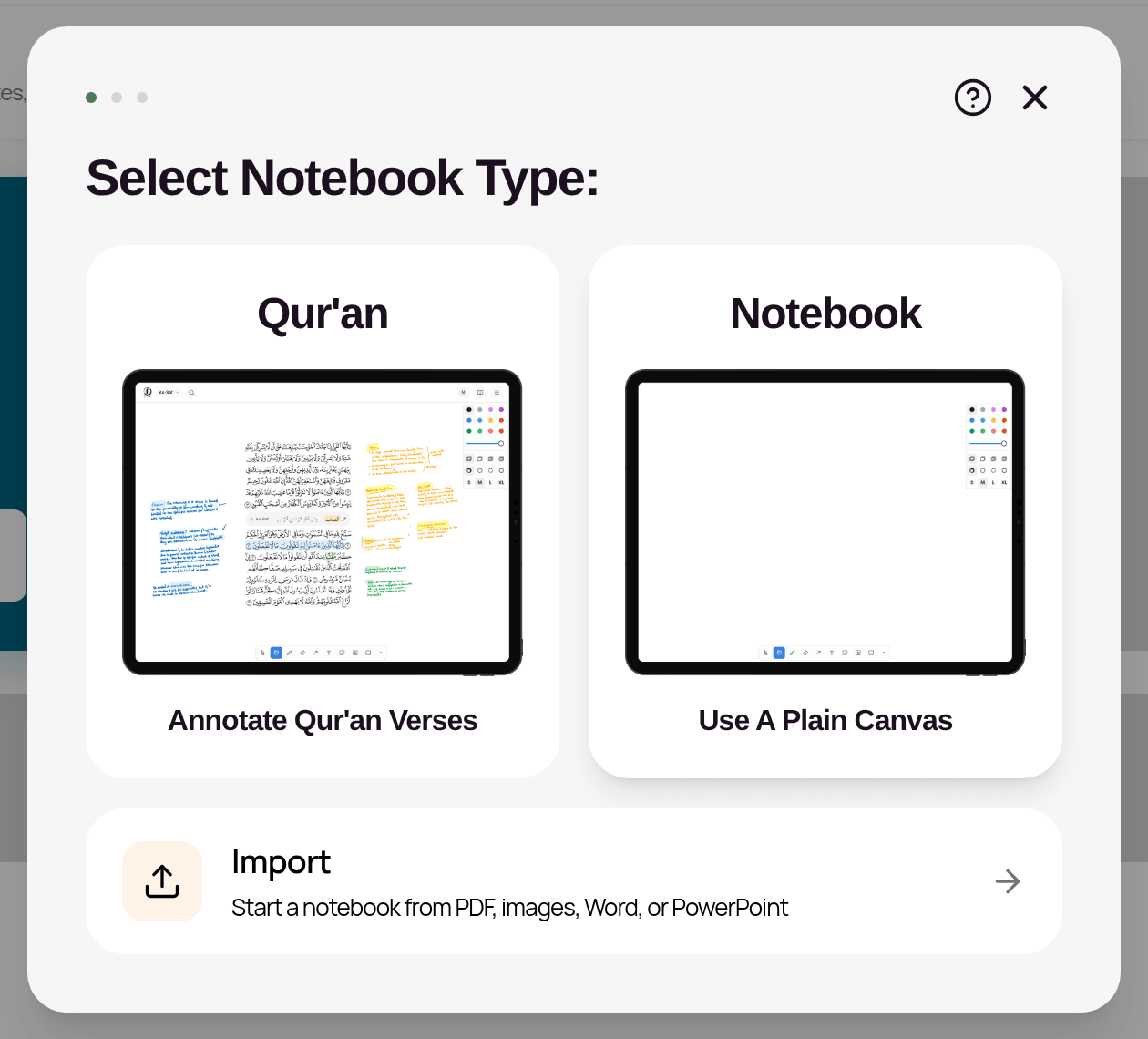
Select Notebook Type: choose one: — Qur'an: annotate Qur'an verses. — Notebook: a plain canvas or document for your own notes. — Import: start a notebook from a PDF, images, Word or PowerPoint file (see "Importing files").
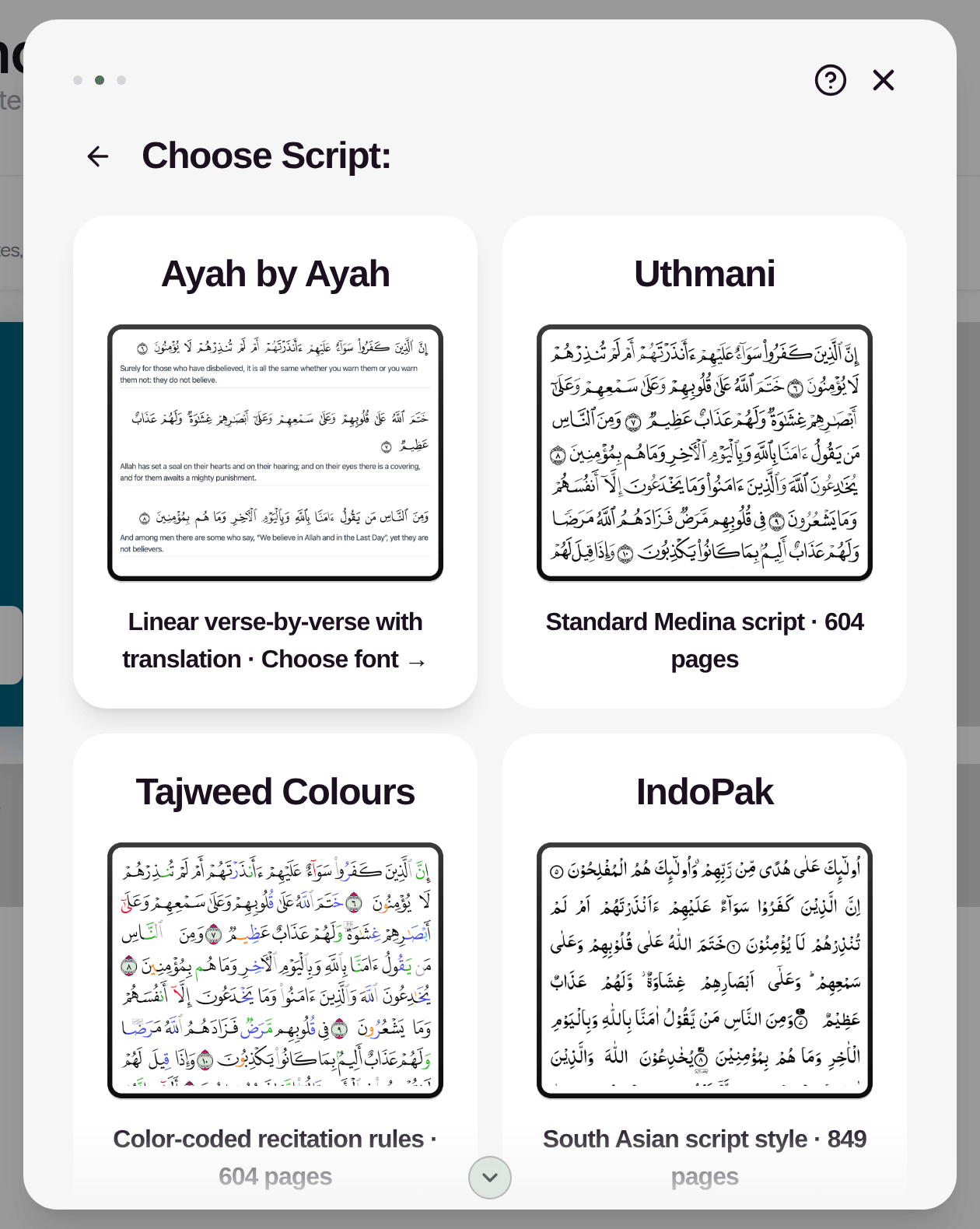
Choose Script (for Qur'an) or Choose Format (for Notebook): — Qur'an: Ayah by Ayah, Uthmani, Tajweed Colours, IndoPak, Traceable or Word by Word. — Ayah by Ayah then asks for a script (Uthmani, IndoPak or Tajweed Colours) and a Translation: Taqi Usmani, Abdul Haleem, Al-Mukhtasar Tafsir or Sahih International. — Word by Word asks for a script (Uthmani or IndoPak), with an Include transliteration option. — Notebook: Canvas, Document, Templates or Journal Pack (see "Notebooks, pages, templates and journals").
Create New Notebook: enter a Name, an optional Description, and pick a Colour for the card.
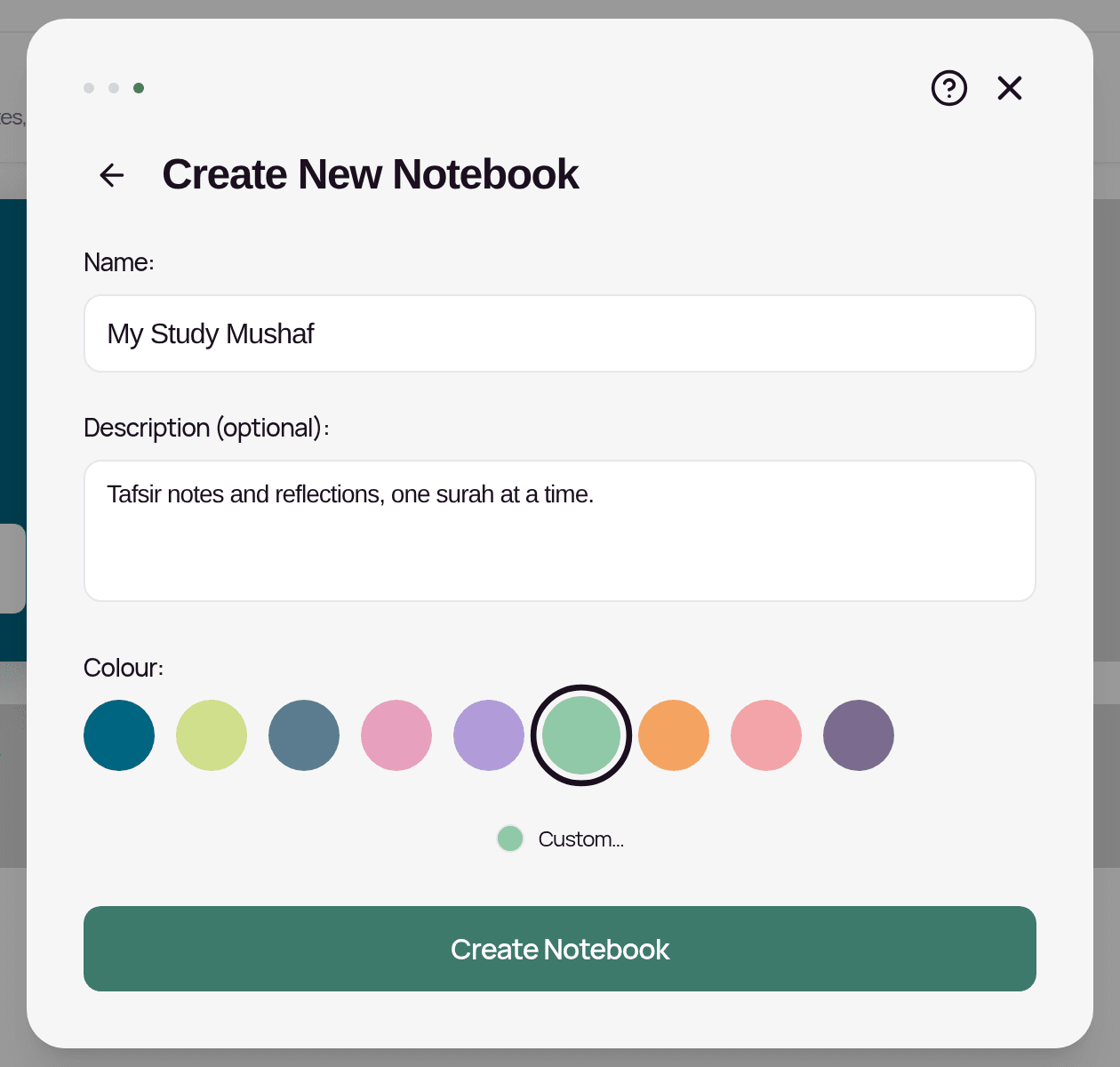
Tap Create Notebook.
Your new mushaf or notebook appears as a card on the dashboard. Tap it (or its Open bar) to open it. (If you used Import, it opens straight away and starts importing.)
You can't change a mushaf's script after creating it. Create a new mushaf with the script you want instead.
Managing a card
Tap the ⋮ menu on a card (or long-press the card) to see:
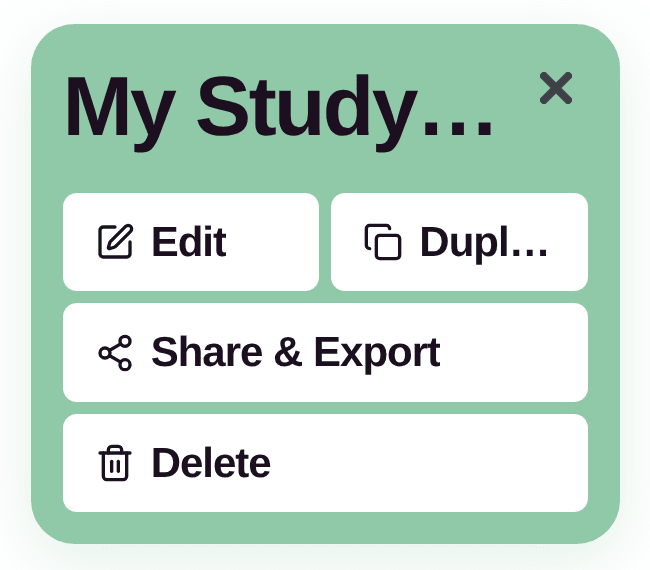
- —Edit (owner only): change the name, description and colour, then tap Save Changes.
- —Duplicate: makes a copy called "<name> Copy", including its annotations and notebook pages.
- —Share & Export: share the mushaf or export your notes.
- —Delete (owner only): permanently deletes the mushaf and all its annotations. This cannot be undone. There is no trash or restore.
- —Leave (for mushafs someone shared with you): removes your access. The owner can invite you again later.
The 10-mushaf limit
When you have 10 mushafs and notebooks, the New Mushaf card is hidden. If you try to create another you'll see "You can only create a maximum of 10 mushafs". Mushafs other people have shared with you can count towards this. To make room, delete one you no longer need (export it first if you want to keep a copy), or leave a shared one.
Tip: one notebook can hold many pages and folders, so you rarely need lots of separate notebooks.
Starter items
New accounts start with a Personal mushaf (Uthmani) and a Blank Pages notebook. You can rename or delete them like any other card.
Related Articles
Was this helpful?
Ready to annotate the Qurʼān?
Qurannotate is free to start — no sign-up required on web.