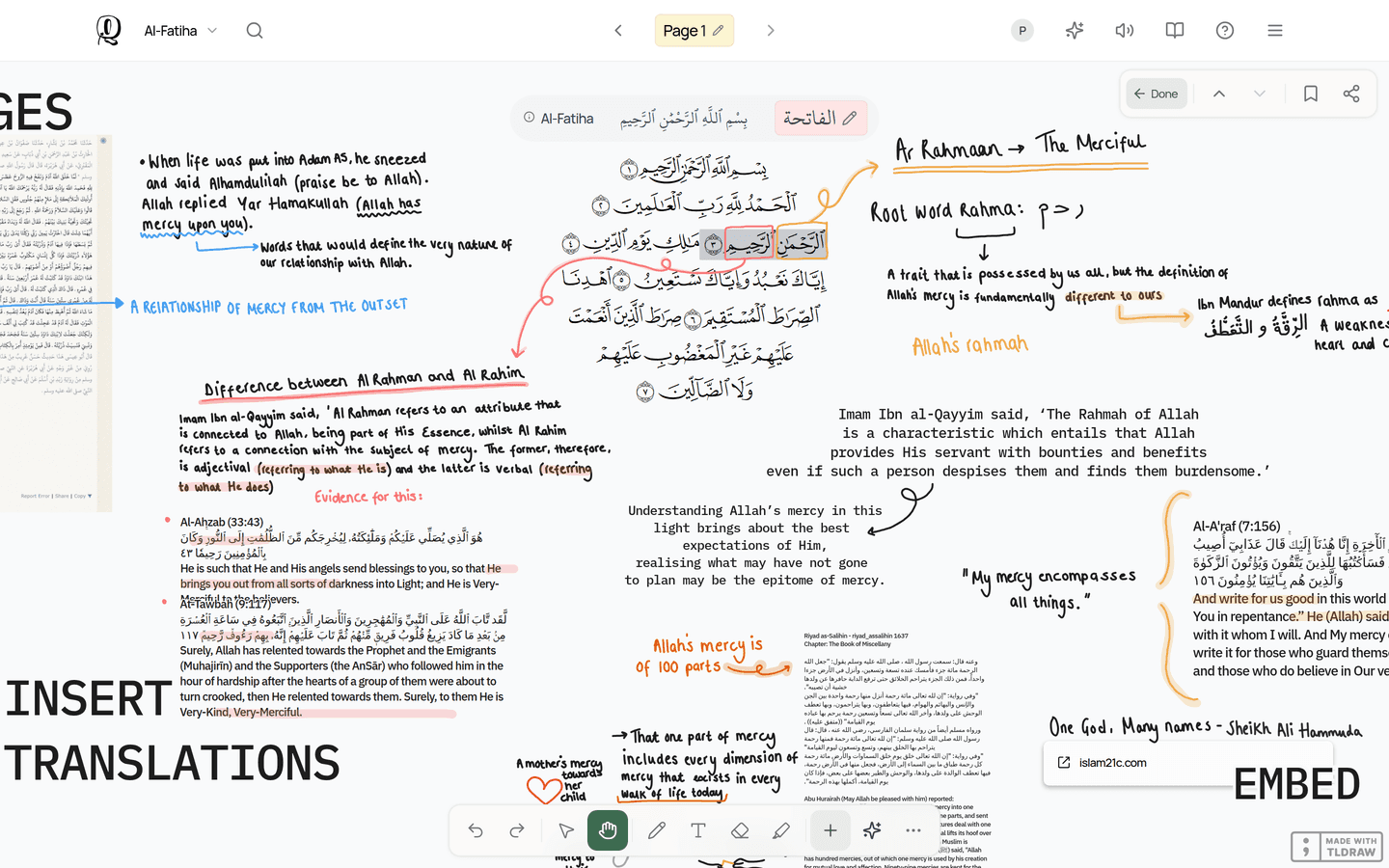
Every Qurannotate shortcut in one place — Mac and Windows keys, Apple Pencil and touch gestures, text formatting and slash commands.
Last updated 27 September 2026
All Qurannotate shortcuts on one page. Choose Mac / iPad or Windows below and the keys change to match. On an iPad with a keyboard, use the Mac keys.
Most shortcuts work on the canvas. Its tool bar sits along the bottom of the screen.Hover over a tool on a computer to see its key: Select V, Pan H, Text T, Eraser E, Highlighter I.
The essentials
The handful worth learning first. They work on every canvas (Quran pages, notebooks and drawing on documents).
Undo
⌘ Cmd+Z
Redo
⌘ Cmd+⇧ Shift+Z
Copy / Cut / Paste
⌘ Cmd+Cor⌘ Cmd+Xor⌘ Cmd+V
Select everything
⌘ Cmd+A
Delete what is selected
⌦ Delor⌫ Delete
Duplicate what is selected
⌘ Cmd+D
Save and go back to reading
Quran page annotations · Not while you are typing in a text box
⌘ Cmd+⌥ Option+↩ Return
Cancel / clear selection / close
Esc
Canvas tools
Single keys. Press them while you are not typing in a text box.
Select (mouse)
V
Pan / move around
H
Pen
DorBorX
Highlighter
Quran page annotations
I
Highlighter
Notebooks and drawing on documents
⇧ Shift+D
Eraser
E
Text box
T
Sticky note
N
Arrow
A
Line
L
Rectangle
R
Ellipse
O
Last-used shape
G
Frame
F
Laser pointer
K
Zoom tool
Z
Keep the tool after drawing (tool lock)
Q
Colours
Sets the colour for what you draw next. With the Select tool, it also recolours the selected shapes. While typing in a text box, the same keys colour the selected text.
Black
⌘ Cmd+⌥ Option+1
Grey
⌘ Cmd+⌥ Option+2
Light violet
⌘ Cmd+⌥ Option+3
Violet
⌘ Cmd+⌥ Option+4
Blue
⌘ Cmd+⌥ Option+5
Light blue
⌘ Cmd+⌥ Option+6
Yellow
⌘ Cmd+⌥ Option+7
Orange
⌘ Cmd+⌥ Option+8
Green
⌘ Cmd+⌥ Option+9
Light green
⌘ Cmd+⌥ Option+0
Light red
⌘ Cmd+⌥ Option+-
Red
⌘ Cmd+⌥ Option+=
Arranging shapes
Nudge selected shapes
Hold Shift to move further
←or→or↑or↓
Edit the selected shape / step into a group
↩ Return
Group
Quran page annotations
⌘ Cmd+G
Ungroup
⌘ Cmd+⇧ Shift+G
Bring to front / send to back
]or[
Bring forward / send backward
⌥ Option+]or⌥ Option+[
Flip horizontally / vertically
⇧ Shift+Hor⇧ Shift+V
Align left / centre / right
⌥ Option+Aor⌥ Option+Hor⌥ Option+D
Align top / middle / bottom
⌥ Option+Wor⌥ Option+Vor⌥ Option+S
Distribute horizontally / vertically
⌥ Option+⇧ Shift+Hor⌥ Option+⇧ Shift+V
Lock / unlock
⇧ Shift+L
Flatten to an image
⇧ Shift+F
Copy as SVG image
⌘ Cmd+⇧ Shift+C
Insert an image or video
⌘ Cmd+U
Print
⌘ Cmd+P
Zoom & view
Zoom in
=or⌘ Cmd+=
Zoom out
-or⌘ Cmd+-
Zoom to 100%
⇧ Shift+0
Zoom to fit everything
⇧ Shift+1
Zoom to selection
⇧ Shift+2
Show / hide the page grid
Notebooks
⌘ Cmd+G
Show / hide the grid
Quran page annotations
⌘ Cmd+'
Focus mode (hide the toolbar)
Press again to bring the toolbar back
⌘ Cmd+.
Mouse & trackpad
Move around the canvas
Scroll, or two-finger swipe on a trackpad
Move around (any tool)
Hold Space and drag, or drag with the middle mouse button
Zoom
Pinch on a trackpad, or ⌘ / Ctrl + scroll
Add to / remove from selection
Shift + click
Duplicate while dragging
⌥ Option / Alt + drag a shape
Drag in a straight line
Hold Shift while dragging
Keep proportions while resizing
Hold Shift while resizing
Resize from the centre
Hold ⌥ Option / Alt while resizing
Snap rotation to angles
Hold Shift while rotating
Draw straight segments
Hold Shift while drawing with the pen
New text box
Double-click an empty spot (Select tool)
Zoom in / out with the Pan tool
Double-click / triple-click
More options
Right-click on the canvas
iPad, Apple Pencil & touch
Switch between pen and eraser
iPad app
Double-tap Apple Pencil
Draw with Pencil, move with fingers
iPad app
After you draw with Pencil, fingers pan and pinch but do not draw
Zoom / move around
Pinch / two-finger drag
Zoom in / out with the Pan tool
Double-tap / triple-tap
Next / previous Quran page
Phones, tablets and the mobile apps (not while annotating)
Swipe right / swipe left
Next / previous notebook page
Phones
Swipe from the screen edge
Move between dashboard tabs
Phones
Swipe left / right
Refresh the dashboard
Pull down
Go back
Phones
Swipe in from the left edge
Mushaf or friend options
Long-press the card (or right-click)
Go back / close a window
Android
Back button (press twice on the home screen to exit)
Formatting text
While you are typing inside a text box on a canvas.
Bold / italic / underline
⌘ Cmd+Bor⌘ Cmd+Ior⌘ Cmd+U
Strikethrough
⌘ Cmd+⇧ Shift+S
Highlight
⌘ Cmd+⇧ Shift+H
Inline code
⌘ Cmd+E
Bullet / numbered / checklist
⌘ Cmd+⇧ Shift+8or⌘ Cmd+⇧ Shift+7or⌘ Cmd+⇧ Shift+9
Align left / centre / right
⌘ Cmd+⇧ Shift+Lor⌘ Cmd+⇧ Shift+Eor⌘ Cmd+⇧ Shift+R
Text colour
Same 12 keys as in Colours above (1–9, 0, −, =)
⌘ Cmd+⌥ Option+1
Bigger / smaller text
⌘ Cmd+⌥ Option+.or⌘ Cmd+⌥ Option+,
Undo / redo typing
⌘ Cmd+Zor⌘ Cmd+⇧ Shift+Z
Indent / outdent a list item
Tabor⇧ Shift+Tab
Next / previous table cell
Tab in the last cell adds a row
Tabor⇧ Shift+Tab
Line break without a new paragraph
⌘ Cmd+↩ Return
Type to format
Type these at the start of a line (or around a word) and the formatting appears automatically.
Heading (1 to 6 #)
#
Bullet list
-
Numbered list
1.
Checklist item
[ ]
Bold
**word**
Italic
*word*
Strikethrough
~~word~~
Highlight
==word==
Inline code
`word`
Link
Web addresses become links automatically
https://…
Slash commands
Type / in any text box on a Quran page or notebook. Use ↑ ↓ to choose, Enter to insert, Esc to cancel.
Insert an ayah
/2:255
Insert a range of ayat
/2:255-257
Insert a whole surah
/112
Surah by name (with or without ayat)
/rahman:2-10
Insert a hadith (needs internet)
/bukhari:1
Link to another note or page
/link
Quick link to an ayah
/link 2:20
ﷺ
or /saw
/pbuh
ﷻ
/swt
رضي الله عنه
/ra
رحمه الله
/rh
عليه السلام
/as
Headings, lists and checklists
Documents · Type / then pick from the list
/
Reading & finding your way
Next / previous Quran page
Reading view on a computer or iPad · ← goes forward, like turning a mushaf page
←or→
Next / previous notebook page
⌥ Option+→or⌥ Option+←
Move through search results
Enter to open
↑or↓
Close a menu or window
Esc
Send an AI Study message
Shift+Enter for a new line. On touch screens, tap Send
↩ Return
Shared documents
Extra keys in documents inside shared (collaborative) notebooks.
Heading 1 to 4
Use 1, 2, 3 or 4
⌘ Cmd+⌥ Option+1
Normal text
⌘ Cmd+⌥ Option+0
Quote
⌘ Cmd+⇧ Shift+B
Code block
⌘ Cmd+⌥ Option+C
Justify
⌘ Cmd+⇧ Shift+J
Switch between typing and drawing
⌘ Cmd+D
Zoom the page in / out / reset
⌘ Cmd+=or⌘ Cmd+-or⌘ Cmd+0
Quote / code block / divider
also ``` and ---
>
Desktop app
In the Qurannotate app for Mac and Windows.
New mushaf
Dashboard
⌘ Cmd+N
Zoom the whole window in / out / reset
⌘ Cmd+=or⌘ Cmd+-or⌘ Cmd+0
Full screen
Ctrl+⌘ Cmd+F
Quit
⌘ Cmd+Q
Last checked against the app on 27 September 2026. Something missing or not working? Tell us.