Creating an account and signing in
Create your Qurannotate account and sign in on web, iPad, iPhone, Android and desktop.
Last updated 27 September 2026
You need an account to use Qurannotate. There is no guest mode. (People you share a mushaf with by link can view it without an account. See "Sharing and collaboration".)
Ways to sign in
On the sign-in screen you can use:
- —Email and password
- —Continue with Google: all platforms.
- —Continue with Apple: web, iPhone/iPad and desktop. It is not offered in the Android app.
- —Continue with Quran Foundation: all platforms. Use this if you have a Quran.com / Quran Foundation account.
On desktop, Google and Apple sign-in open in your web browser and then return you to the app.
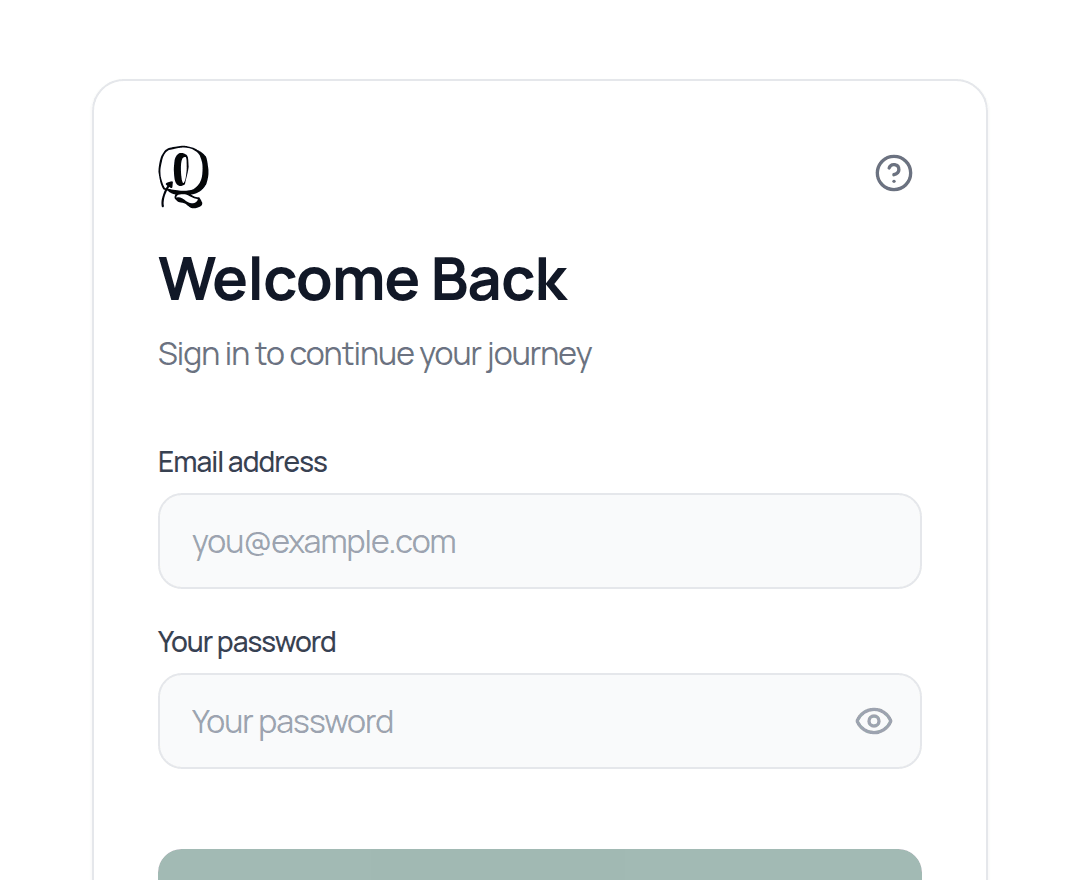
Create an account with email
On the sign-in screen, tap Don't have an account? Sign up.
Enter your Email address and a password.
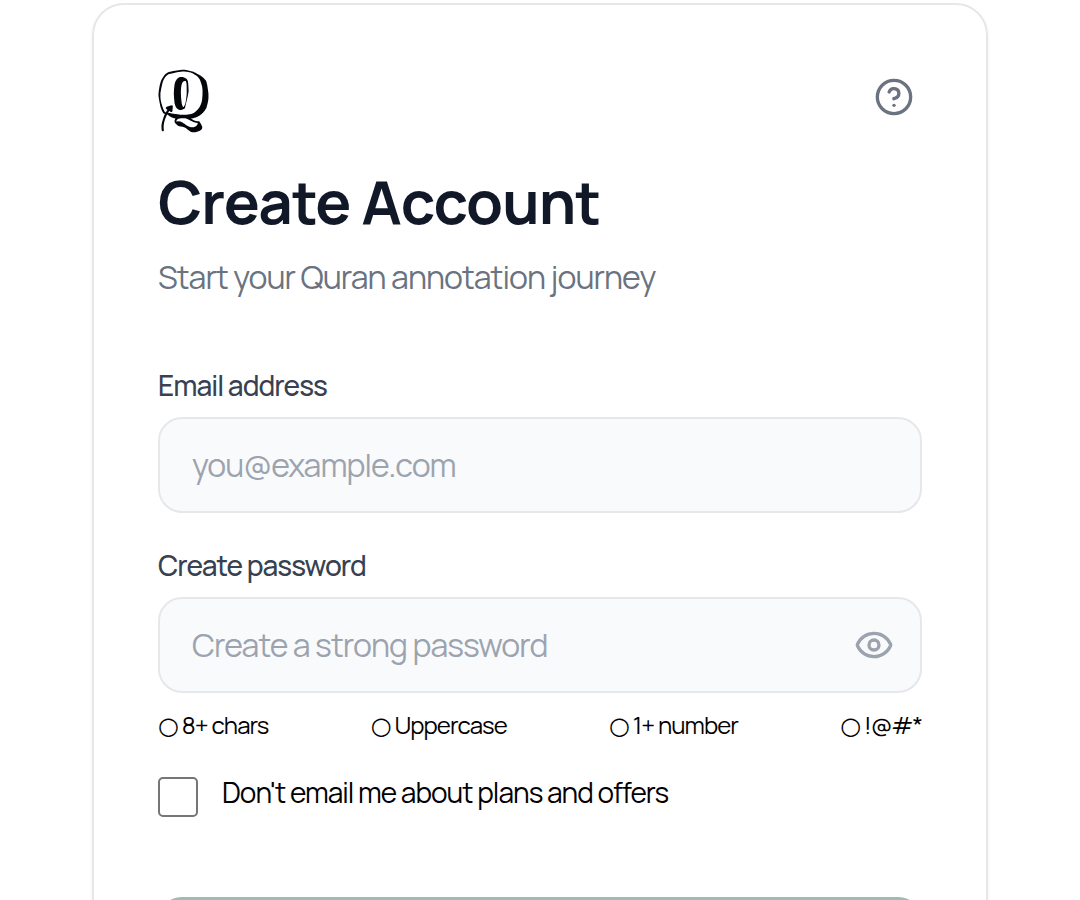
Tap Create Account.
Check your inbox (and your junk/spam folder) for the verification email, and click the link in it.
On the Confirm Your Account screen, tap Confirm My Account. You'll see Account Verified! and go to your dashboard.
Password rules: at least 8 characters, with an uppercase letter, a lowercase letter, a number and a symbol (such as ! @ # *).
You must verify your email before you can sign in. There is no code to type into the app; just click the link in the email.
If the link says it is invalid or has expired, go back to sign up with the same email to get a new verification email.
On sign-up you can tick Don't email me about plans and offers if you don't want marketing emails. You can change this later in Settings > Account.
After you sign up
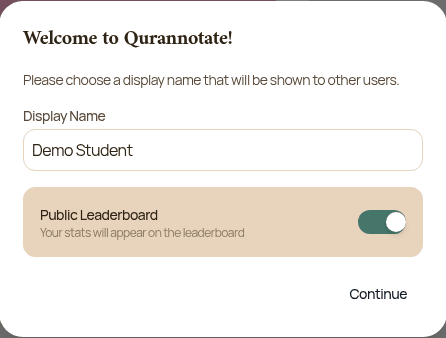
- —You may be asked to choose a Display Name. This is shown to other users (for example on the leaderboard and when collaborating).
- —A few short intro slides show you the dashboard, annotations and the canvas.
- —Your first mushaf gets a few example notes on Al-Fatihah so you can see how notes work. A card says Start with a real example. The example notes are your own copy: explore, edit or delete them whenever you like.
- —New accounts come with two items on the dashboard: Personal (an Uthmani mushaf) and Blank Pages (a notebook).
Common sign-in messages
- —"Invalid login credentials…": the email or password is wrong, or there's no account with that email yet. Check for typos, use Forgot your password?, or sign up.
- —"Please confirm your email address before signing in": click the verification link in your email first.
- —"This email is already registered": you already have an account. Sign in, or reset your password.
- —"Too many failed attempts. Please try again in 15 minutes.": this appears after 5 wrong attempts. Wait, or use Forgot your password?.
- —On the website, a quick security check (CAPTCHA) may appear before you can continue. If it says it failed or expired, try it again.
If you originally signed up with Google, Apple or Quran Foundation, sign in with that same button. Your account is linked to that email.
Related Articles
Was this helpful?
Ready to annotate the Qurʼān?
Qurannotate is free to start — no sign-up required on web.