Lecture transcription, live translation and audience links
Turn a lecture, YouTube video or live talk into notes, with live translation and audience links.
Last updated 27 September 2026
Open the AI Study panel and choose the Lecture tab. Transcription uses AI credits (see "AI credits").
Choose an Audio source
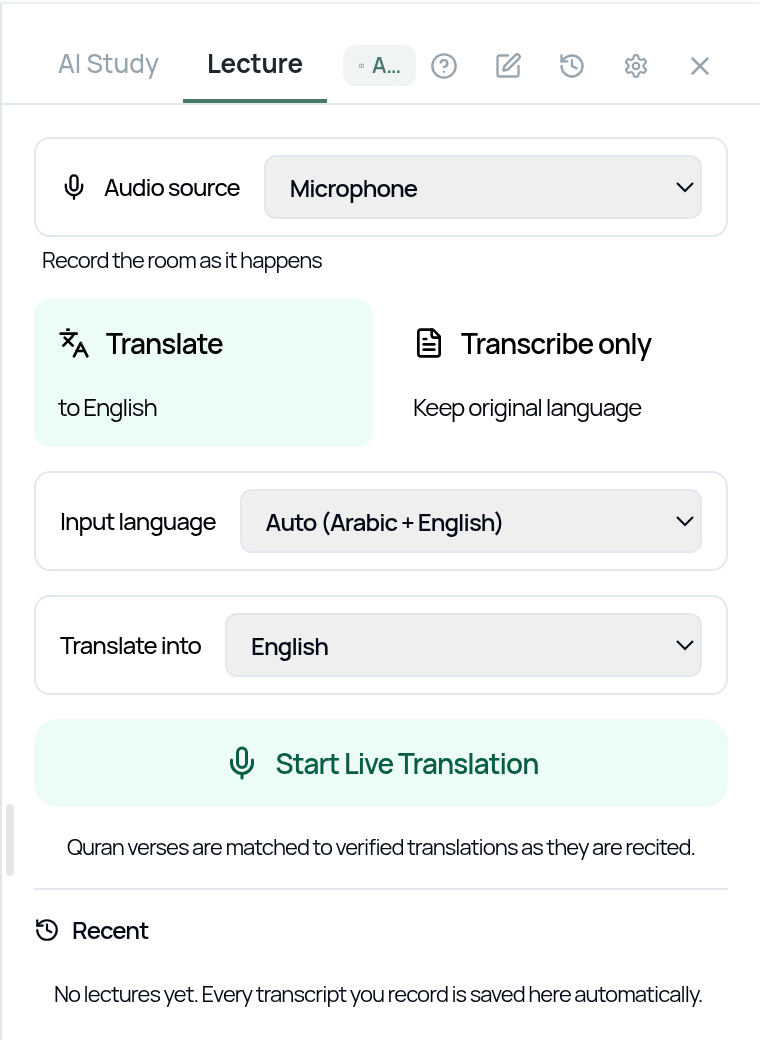
- —Microphone: record the room as it happens.
- —System audio: a call or video playing on this device.
- —System + microphone: in-person and remote voices in one transcript.
- —Audio file: upload a recording you already have (up to 500 MB).
- —YouTube link: paste the URL of a lecture.
System audio and System + microphone are available in the web app (in a desktop browser) and the desktop app. In a browser you'll be asked to pick a screen or tab. Turn on Share audio.
Live transcription and translation
For Microphone or the system options:
Choose Translate (and pick a language under Translate into: English, Urdu, Turkish, French, German, Spanish, Indonesian, Malay or Somali) or Transcribe only (keep the original language).
Set the Input language. The default is Auto (Arabic + English), and around 60 languages are available.
Tap Start Live Translation or Start Live Transcription.
Allow microphone access if asked.
Tap Stop when you're done.
Qur'an verses are matched to verified translations as they're recited. Live sessions cost 2 credits per minute and stop automatically if you run out of credits. A session can run for up to 3 hours.
If you see "No audio is reaching the transcriber", check your microphone or audio sharing. If microphone access was denied, allow it in your device or browser settings and start again.
Share a live audience link
While a live session is running, tap Share with your audience. Everyone with the link follows along live, each reading in their own language.
- —Copy the link, share it, or tap Show QR code to scan so people in the room can scan it with their phone camera.
- —Listeners don't need an account. They open the link, choose a Language, and read along on the Live Translation page.
- —You'll see how many listeners are connected. Audience translation costs 1 extra credit per minute for each language being read, only while listeners are connected.
- —Tap End audience link before stopping the session to close the link.
Transcribe an audio file or YouTube lecture
Choose Audio file and tap Choose audio file, or choose YouTube link, paste the URL and tap Go.
Wait while it transcribes. Long lectures can take a few minutes. This costs about 2 credits per minute of audio.
Your transcript
Every transcript is saved automatically. Find past ones under Recent in the Lecture tab.
On the result screen you can:
- —switch between Formatted and Raw views. Formatting adds punctuation, paragraphs and headings without changing what the speaker said.
- —Translate to English, and Search this transcript.
- —Copy into a notebook: asks the AI to turn the transcript into study notes on your open canvas (uses chat credits).
- —Ask AI about this: ask questions about the lecture.
- —Export file: download the transcript as a text file (web and desktop app).
If a session ends unexpectedly, you'll be offered Save to history when you return.
Related Articles
Was this helpful?
Ready to annotate the Qurʼān?
Qurannotate is free to start — no sign-up required on web.