Changing Highlighter Opacity
Make your highlights softer or stronger by adjusting opacity.
TL;DR
Opacity controls how strong or soft the Highlighter's colour looks, set with a 5–100% slider on every canvas. Lower opacity keeps the text readable underneath, while higher opacity gives a bold, solid mark.
Last updated 27 September 2026

The Highlighter (shortcut I) lays colour over text. Opacity controls how strong or soft that colour looks.
Where to Change It
Select the Highlighter (or the Pen), then open its colour settings: the style panel on desktop and iPad, or the colour dot next to the Pen on phones. Every canvas — Qur'an notes, notebooks, and documents — has an opacity slider you can drag from 5% to 100%.
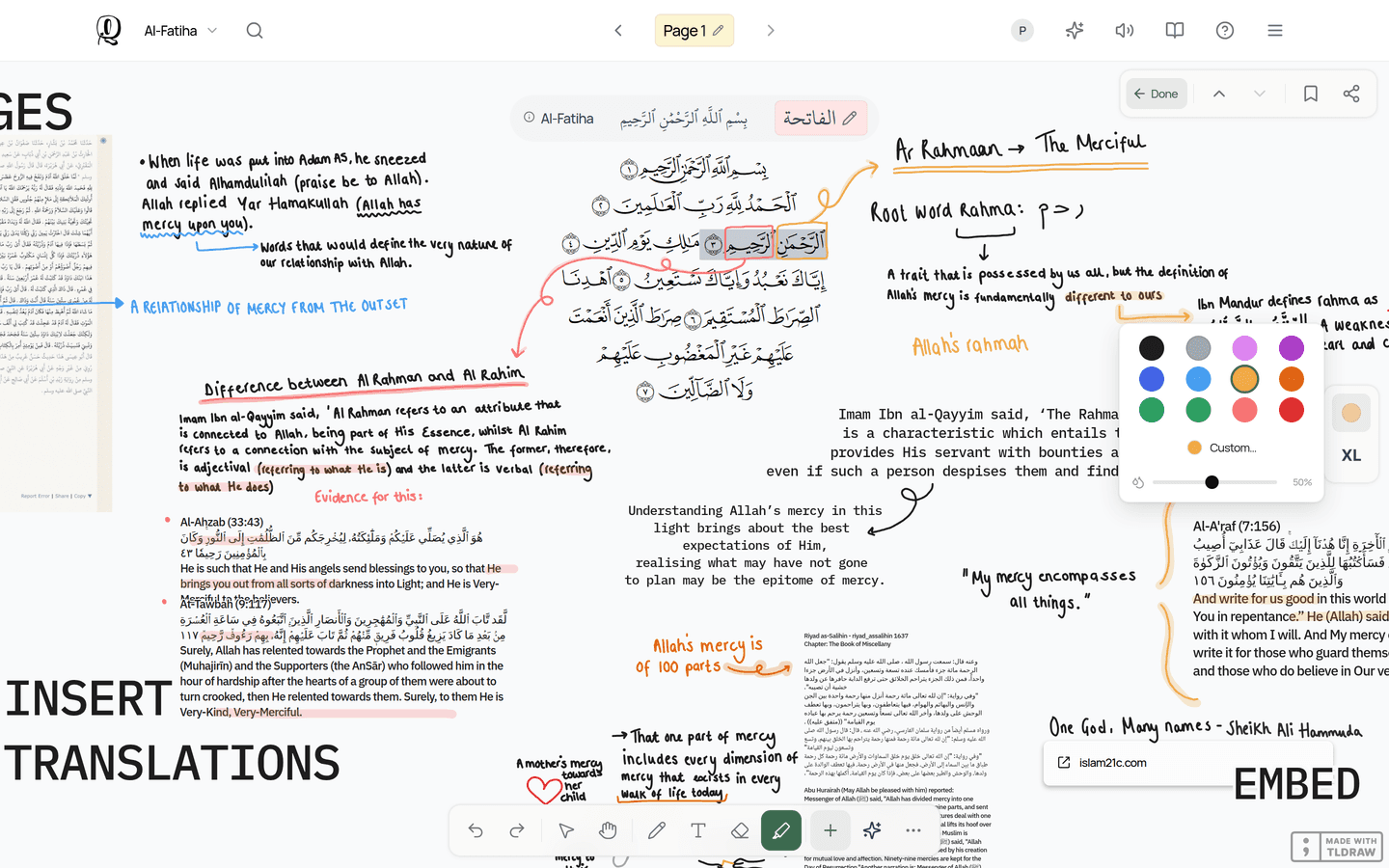
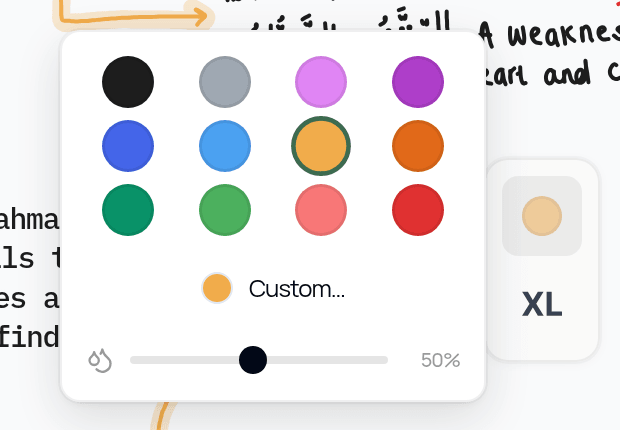
Lower opacity gives a soft, see-through highlight that keeps the text easy to read underneath. Higher opacity gives a bold, solid mark.
Use a soft highlight for general themes, and a stronger one for key ayahs or important revision points.
Related Articles
Was this helpful?
Ready to annotate the Qurʼān?
Qurannotate is free to start — no sign-up required on web.