Drawing and Documents
Documents are for typed notes. To draw or handwrite, use a Canvas page or a Qur'an note.
TL;DR
New Document notebooks switch between Type, Draw, and Pan with buttons at the top, while older and shared documents use a Text/Draw pill (or Cmd/Ctrl+D). Your text and drawings share the same page, so you can mark it up and switch back to typing.
Last updated 28 September 2026
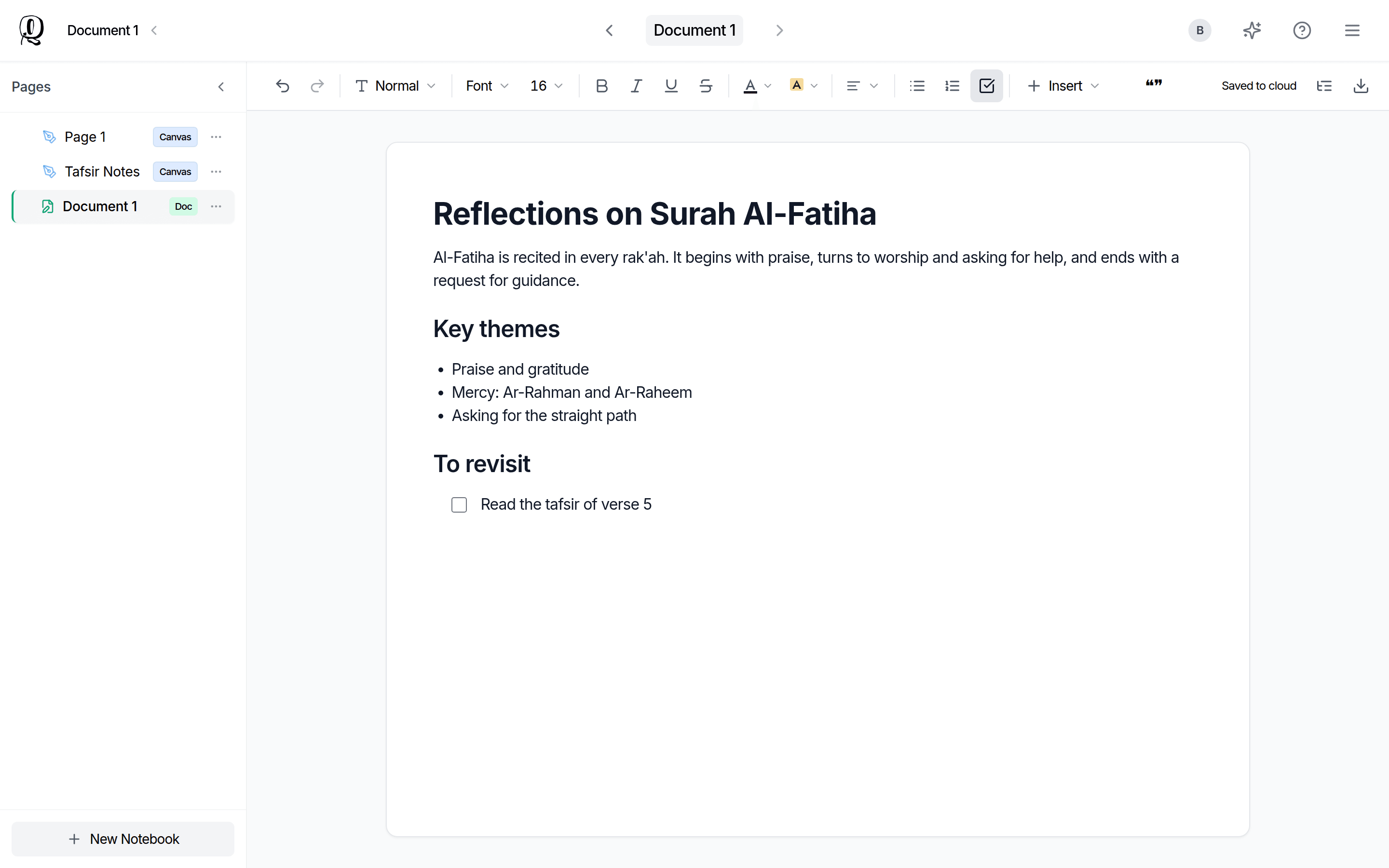
A Document is for typing: headings, lists, tables, images, ayahs and videos. It has no pen, so you cannot draw on a Document page.
Where to Draw Instead
- —Add a Canvas page to the same notebook: tap New Notebook in the sidebar, then Canvas. A Canvas page has the pen, highlighter, eraser, text and shapes.
- —Write in a Qur'an note: open a mushaf and tap a word, a verse marker, a surah name or the page button.
- —Use a template: New Notebook > Templates gives you a Canvas page with a ready-made layout, such as Tafsir Notes.
Older Documents with Handwriting
Older documents are converted to the new format the first time their owner opens them. Anything you drew on the old pages is kept: tap Original pages (read-only) at the top of the document to see it.
Keep typed notes in a Document and your handwriting on a Canvas page in the same notebook. The sidebar keeps them side by side.
Related Articles
Was this helpful?
Ready to annotate the Qurʼān?
Qurannotate is free to start — no sign-up required on web.