Canvas tools, Insert menu and Apple Pencil
The canvas toolbar, Insert menu, pen and highlighter, and using Apple Pencil.
Last updated 27 September 2026
Qur'an notes and Canvas notebook pages share the same canvas and toolbar.
The toolbar
Desktop and tablets (bottom of the canvas): Undo, Redo, Select (V), Pan (H), Pen, Text (T), Eraser (E), Highlighter (I), Insert (+), AI Study, and More tools.

Phones (and narrow windows): the bar shows Select, Pen, a pen colour dot, Text, Insert, Eraser and More tools. Pan, Highlighter and the shapes are inside More tools. Undo/Redo and AI Study are in the top row.
- —Select: tap, move, resize and edit things.
- —Pan: move around the canvas without changing anything. You can also pinch or scroll.
- —Pen: handwrite and draw.
- —Highlighter: see-through colour over text.
- —Eraser: remove strokes.
- —Text: type a text box.
More tools
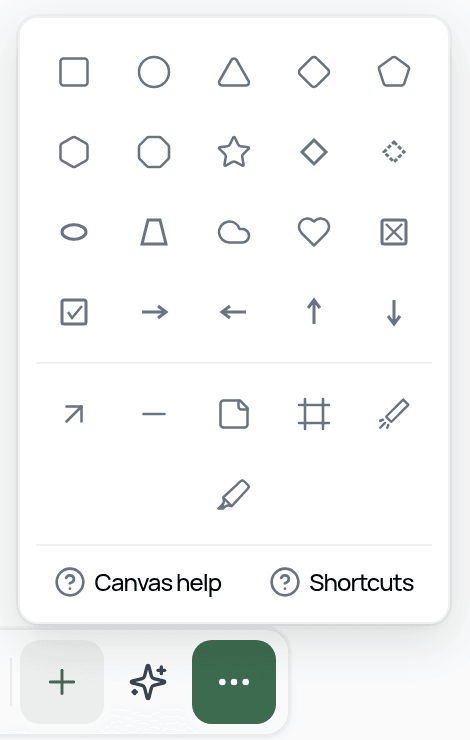
More tools holds your 3 most recently used tools at the top, then:
- —Shapes: Rectangle, Ellipse, Triangle, Diamond, Pentagon, Hexagon, Octagon, Star, Rhombus, Oval, Trapezoid, Cloud, Heart, X Box, Check Box, and arrow shapes.
- —Arrow (A), Line (L), Note (N) (a sticky note), Frame (F), Laser (K) (a temporary pointer that fades) and Highlighter.
Colour, size and style
On desktop and iPad, a style panel appears for the selected tool or item:
- —Colour: 12 colours, plus an opacity slider from 5% to 100%.
- —Size: S, M, L, XL.
- —Stroke: Draw, Solid, Dashed, Dotted.
- —Fill (for shapes), Font (Draw, Sans, Serif, Mono), text alignment, arrowheads and more.
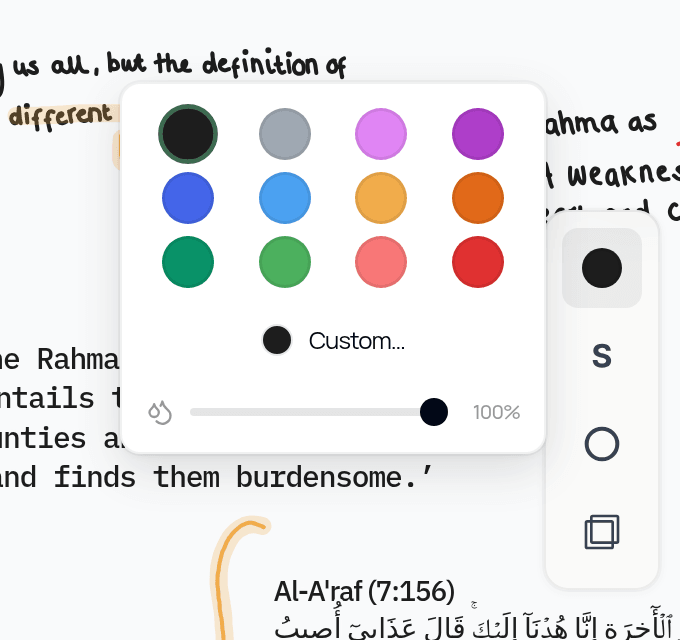
On phones, tap the colour dot next to the Pen for colours and sizes.
Each tool remembers its own settings, so your Pen and Highlighter can be set up differently.
Typed text formatting
While editing a text box you can use bold, italic, underline, strikethrough, text colour and highlight, font and size, alignment, bullet, numbered and task lists, and tables.
The Insert (+) menu
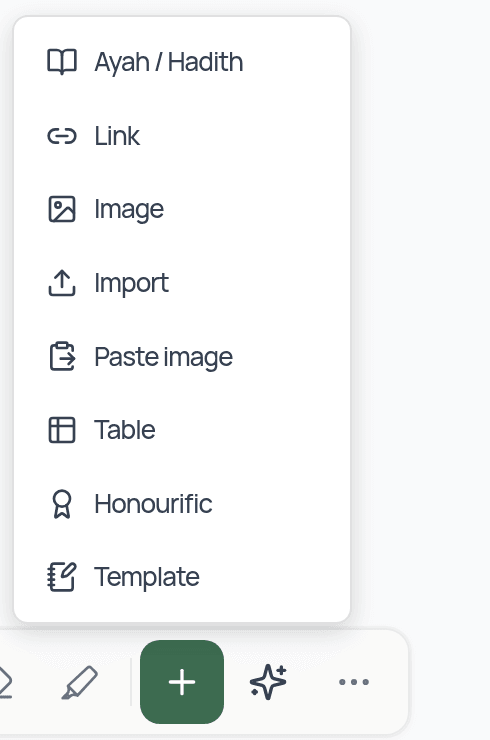
- —Ayah / Hadith: search for and insert a verse or hadith.
- —Link: link to one of your notes or pages (see "Slash commands and linking notes").
- —Image: choose one or more images from your device.
- —Import: place the pages of a PDF on the canvas.
- —Paste image: paste an image from your clipboard.
- —Table
- —Honourific: ﷺ (SAW/PBUH), SWT, RA, RH, AS.
- —Template: drop a study template onto the canvas.
You can also paste a YouTube link onto a canvas to embed a playable video (it needs internet to play).
Apple Pencil and stylus (iPhone/iPad app)
- —Double-tap the Apple Pencil to switch between Pen and Eraser. From any other tool, double-tap switches to Pen.
- —Palm rejection: once you've used your Pencil, the drawing tools (pen, highlighter, eraser, shapes, text and similar) only respond to the Pencil, so your hand won't leave marks. Your finger still works for Select, Pan and pinch-to-zoom.
- —There is no separate "draw with finger" setting. If you haven't used a Pencil in the session, your finger can draw.
- —Scribble (handwriting-to-text) is turned off while you draw. When you tap into a text box after using the Pencil, the keyboard appears so you can type.
Undo
Undo and Redo work for the current editing session (⌘Z / Ctrl+Z, and ⌘⇧Z to redo).
For the full list of keyboard shortcuts, see the Qurannotate shortcuts page.
Was this helpful?
Ready to annotate the Qurʼān?
Qurannotate is free to start — no sign-up required on web.