Moving Around a Notebook and Adding Pages
Switch between pages, add new ones, and organise a notebook.
TL;DR
New Notebook in the left sidebar adds a Canvas, Document, Templates, Journal Pack, Import File, or Folder, and you can drag items into folders. Inside a Canvas notebook, the page strip lets you move between pages and add new ones.
Last updated 27 September 2026

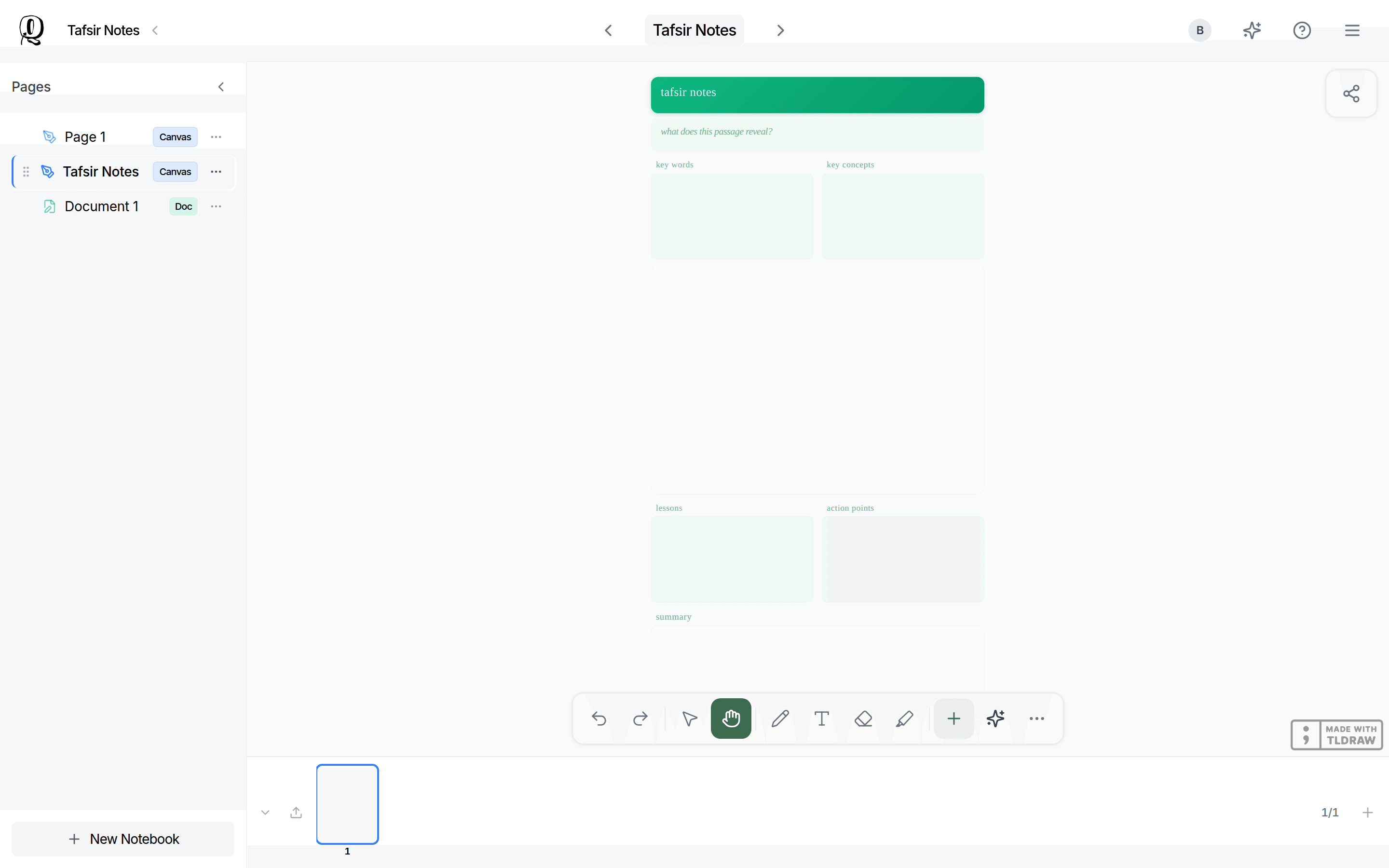
A notebook can hold as many pages as you like. The sidebar on the left lists everything inside it (open it with the chevron in the notebook header), and a page strip lets you move between the pages of a Canvas notebook.
Switching Between Pages
Tap anything in the sidebar to open it. Inside a Canvas notebook, use the page strip along the bottom (on desktop) to move between pages, or View all pages (Ctrl+G) to see them all at once. On phones, a page strip appears at the top once there are 2 or more pages.
Adding a New Page
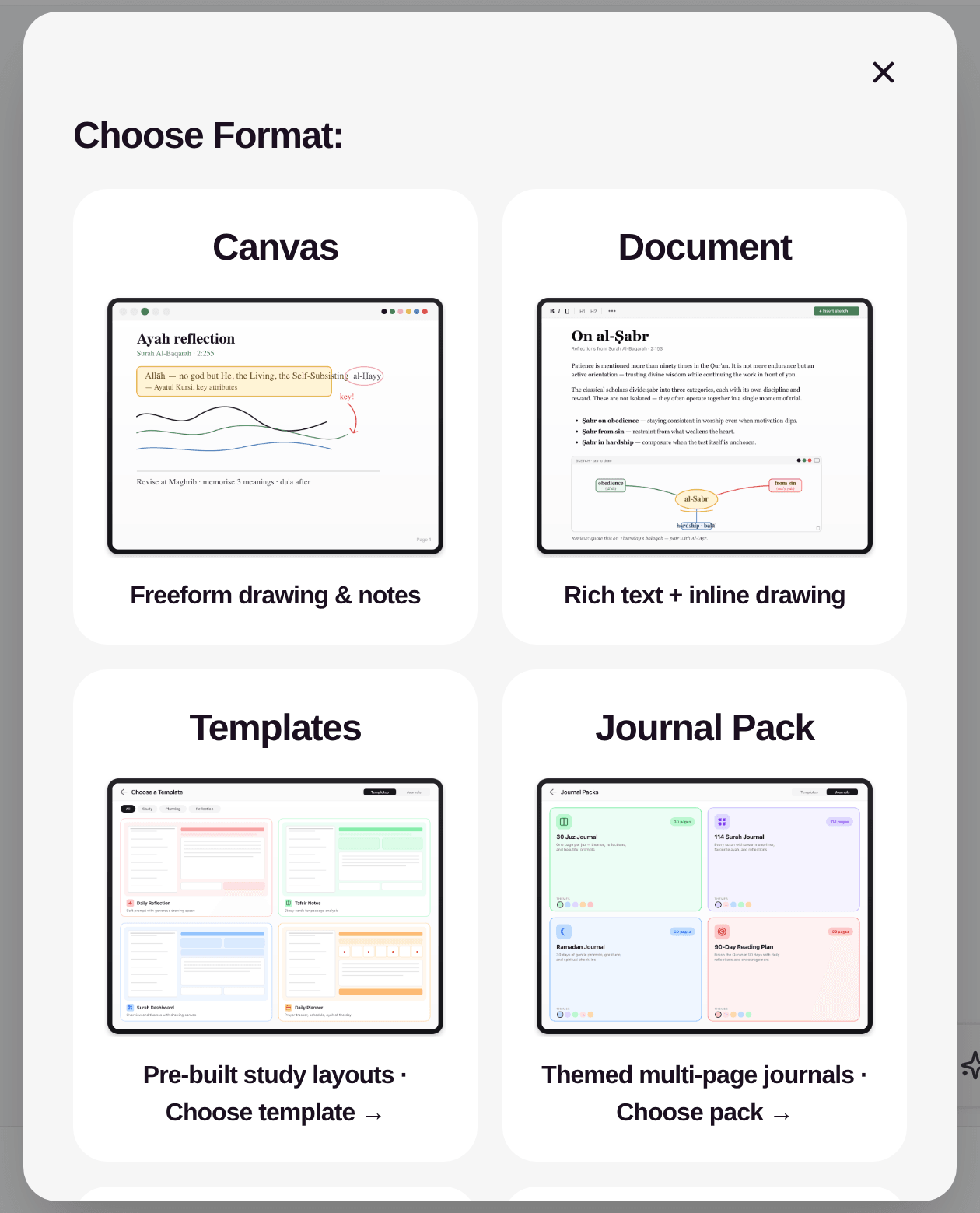
Tap New Notebook in the sidebar, then choose what to add: Canvas, Document, Templates, Journal Pack, Import File, or Folder. To add another page to the Canvas notebook you are in, tap Add page on the page strip (desktop) or use the page grid.
Keeping It Organised
You can group related items into folders (New Notebook > Folder) and drag them to reorder or move them into a folder. You can also mix different types in the same notebook — for example a Document for writing next to a Canvas for diagrams.
Use one notebook per study purpose, and folders inside it for each topic, so your pages stay easy to find later.
Was this helpful?
Ready to annotate the Qurʼān?
Qurannotate is free to start — no sign-up required on web.