The AI Study Assistant
Ask questions while you study — the AI Study panel knows the page and verse you are on.
Last updated 27 September 2026
The AI Study Assistant is a side panel for asking questions while you study. It knows what you're looking at: a verse, a page, a note or a notebook page. It uses AI credits (see "AI credits").
Opening it
- —Dashboard: the Study with AI card.
- —Reading a mushaf: the sparkle button (AI Study Assistant) in the header.
- —Inside a note or notebook: the AI Study button on the canvas toolbar (desktop/tablet) or in the top row (phones), or the sparkle button in the notebook header.
- —Translation or Tafsir panel: Ask AI about this verse.
The first time, you'll see a short privacy summary. Tap I understand, let's go to continue.
The panel has two tabs: AI Study (chat) and Lecture (transcription, see "Lecture transcription and live translation").
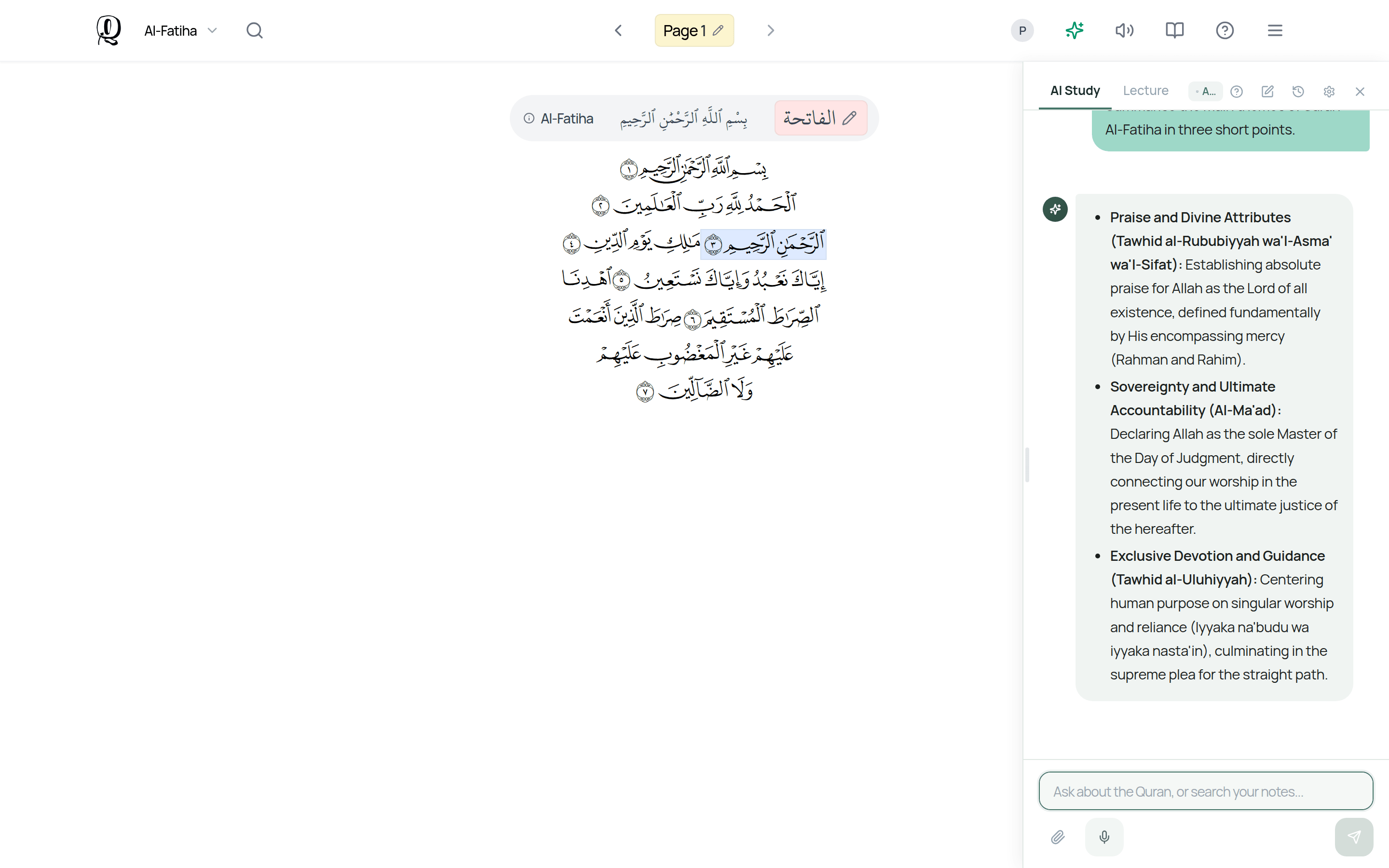
What you can ask
- —Explain a verse, find related verses, or explain grammar.
- —What scholars say about a verse. The assistant can look up tafsir and hadith.
- —Summarise or reflect on your notes on this page, or search your notes across your mushafs.
- —Make a study plan or prepare to study a surah.
Quick-action buttons suggest questions for what you have open. You can also:
- —Attach files: images, PDFs, TXT, Markdown or Word (.docx) files. Images up to 10 MB, documents up to 50 MB.
- —Voice input: tap the microphone, speak, and your question is transcribed (uses credits).
- —Stop generating if you want to interrupt an answer.
Under an answer you'll see how many sources it searched. You can also Copy, rate it Helpful / Not helpful, or use Design on Canvas.
Putting results on your canvas
When a note or Canvas page is open, the assistant can build things on it: mindmaps, timelines, verse networks, study boards, tidied-up ("beautified") notes, recoloured or re-laid-out boards, and more.
It always asks first. A card such as Create Mindmap? or Design Study Board? appears, and nothing changes until you tap its button (e.g. Add to canvas, Design it, Apply). Everything added is ordinary canvas content you can edit or delete.
In a Document notebook, it can offer Insert into document.
If no canvas is open, it will ask you to open a verse, surah or page note first.
Conversations
- —New Chat starts fresh.
- —Conversation History reopens past chats.
- —If you see "This conversation won't be saved — connection issue", your connection dropped. Copy anything important.
Privacy settings
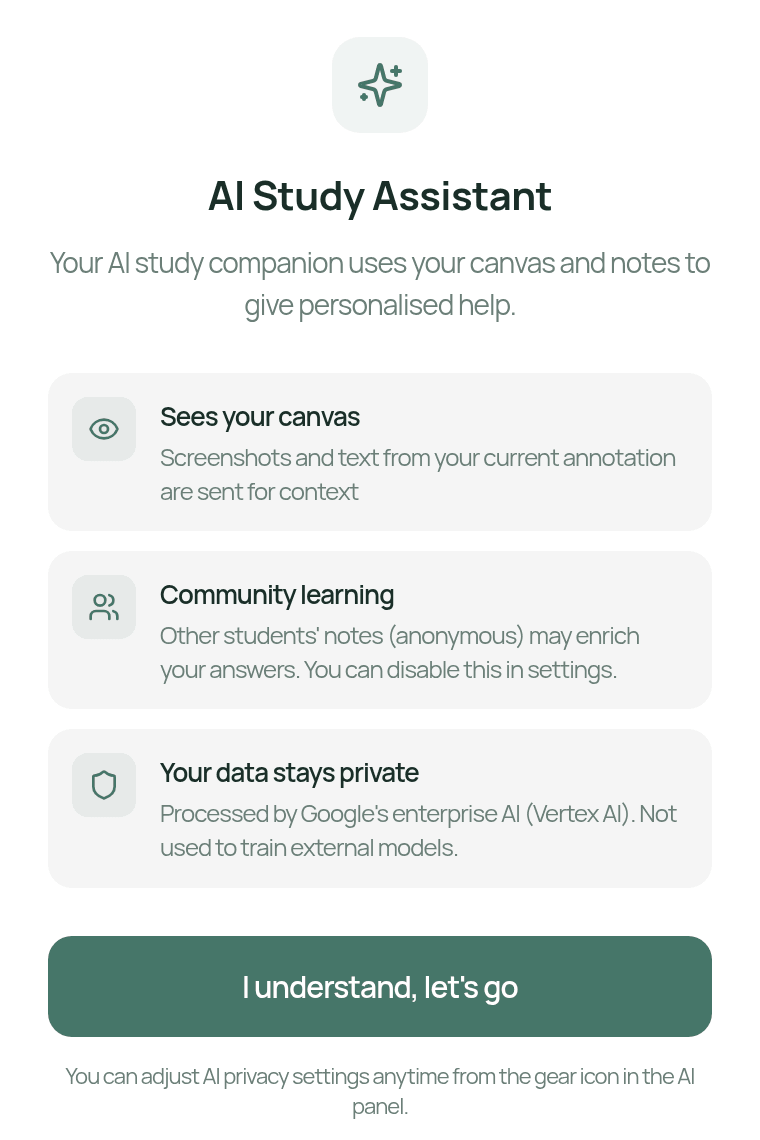
The gear (AI Settings) opens Settings, where AI Community Learning controls whether your annotations can be used anonymously to help improve AI answers for other students. It's on by default and you can turn it off at any time. To give context, the assistant can see your current note (including a screenshot of it). See "Privacy and your data".
A study aid, not a scholar
AI answers can be wrong or incomplete. Use them to support your study, and check important religious matters with qualified scholars and trusted sources.
Was this helpful?
Ready to annotate the Qurʼān?
Qurannotate is free to start — no sign-up required on web.